One Logo, Every Platform
How to Ship App Icons in One Go

Designing an app icon often starts with one simple file: a logo on a 1024×1024 canvas.
The trouble starts after that.
A real app does not need just one icon. It needs a complete set for iPhone, iPad, macOS, Android, and the web. Each platform expects different sizes, different filenames, and in some cases different rules.
The most common example is transparency.
macOS icons can use transparent backgrounds. That is why cut-out artwork, shadows, and floating shapes often look great on desktop.
iOS is different. The App Store icon must be a full square image without transparent pixels. You should not pre-round the corners either. The system does that later.
So a designer usually ends up with separate exports: one opaque set for iOS and other platforms, and another transparent set for macOS.
That works, but it is not a clean workflow.
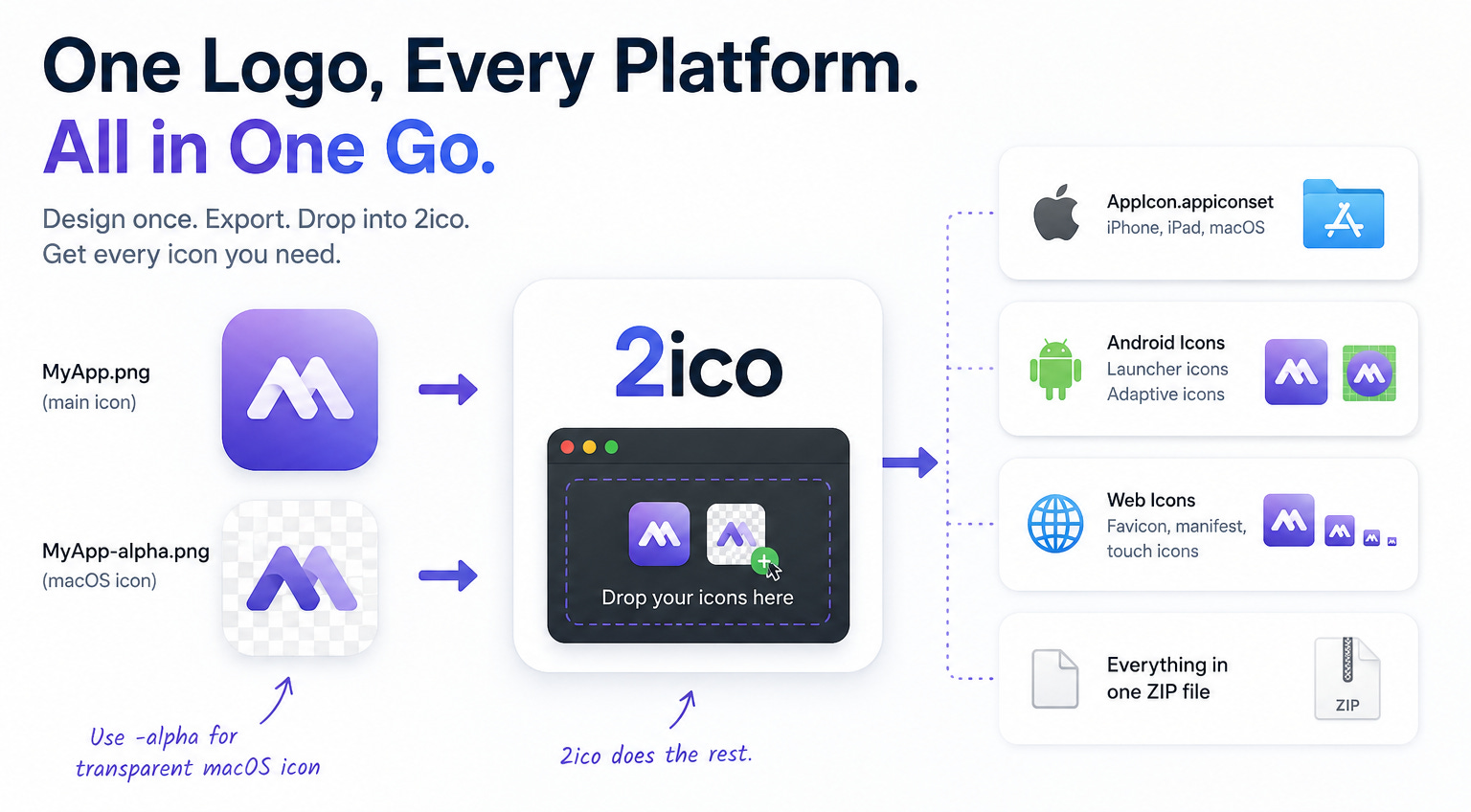
One go instead of separate sets
This is where 2ico by beaver tools makes the process easier.
Drop your main icon into 2ico, and it creates the full icon package in one go: Apple AppIcon.appiconset, Android launcher icons, adaptive icons, favicons, touch icons, and manifest files.
Instead of resizing images by hand or editing Contents.json, you get a ready-to-use icon pack next to your source file.
The unique -alpha feature
The real advantage is the -alpha pairing.
Use your normal opaque icon as:
MyApp.png
And the transparent macOS version as:
MyApp-alpha.png
Drop both files into 2ico at the same time.
2ico automatically uses the opaque file for iOS, iPadOS, Android, and web. The -alpha file is used only for the macOS icon slots.
That means you can keep the correct platform behavior without building separate icon sets and merging them manually.
Bottom line
Cross-platform app icons should not require a pile of manual exports.
With 2ico, the normal case is simple: drop in one icon and get the full pack. And when macOS needs transparency while iOS needs opacity, the -alpha feature keeps everything in one go.